Slide Ins are an interactive dialog that slides in from the edge of the screen, requiring user engagement before closing again. They often present information, gather input, or confirm actions.
AnatomyPermalink to: Anatomy
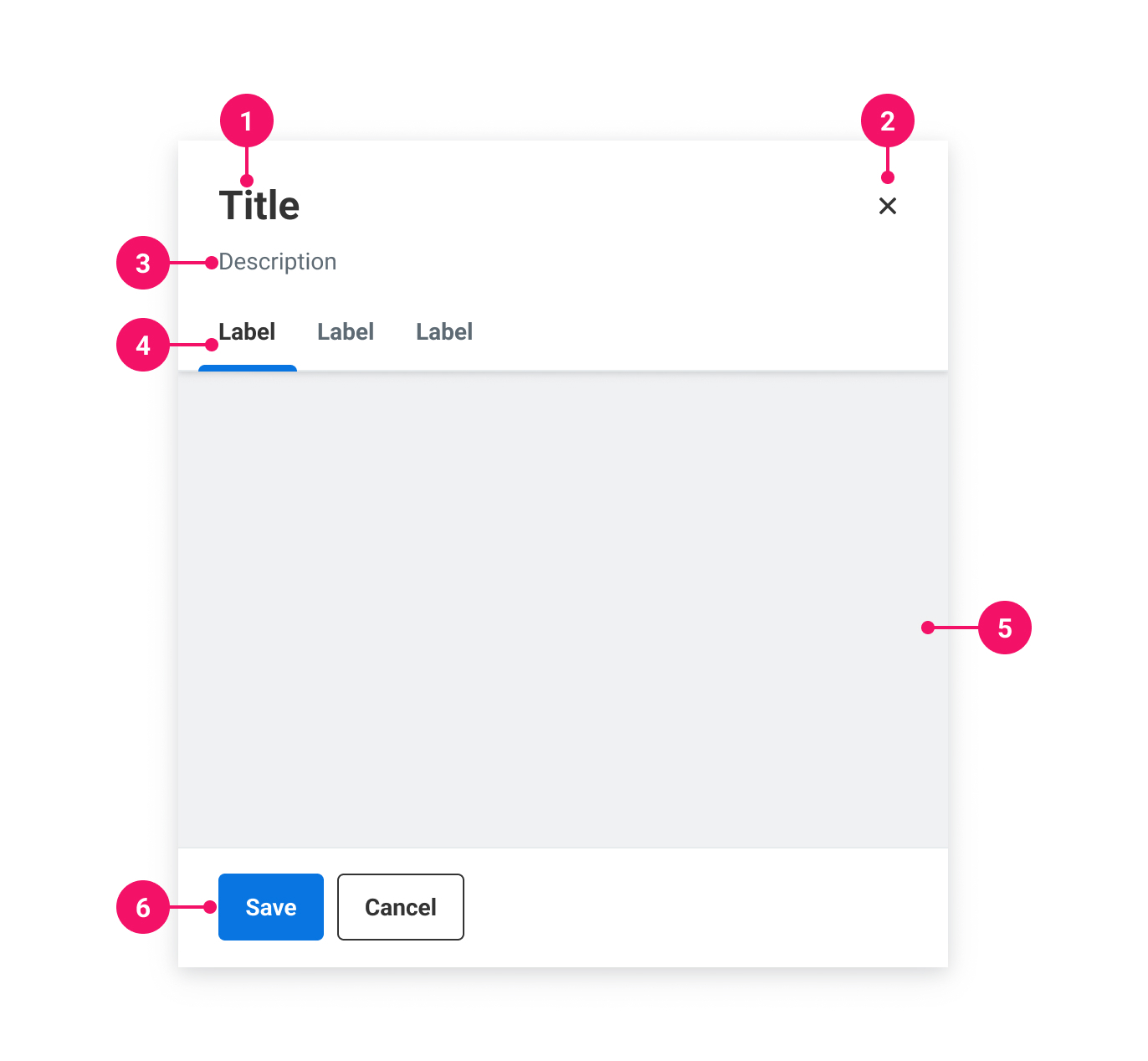
-
Title: Describes the purpose of the Slide In
-
Close button: Dismisses the Slide In
-
Description (optional): Description that adds more context
-
Tabs (optional): Built in tabs
-
Content: The main content
-
Actions (optional): Action buttons can be placed here
UsagePermalink to: Usage
The Slide In is used for displaying content that requires immediate user attention or interaction, without leaving the context of the current page. When a Slide In is shown, the rest of the page becomes inert until the Slide In has been dismissed.
When to usePermalink to: When to use
- For longer forms or detailed information.
When not to usePermalink to: When not to use
- For shorter and simpler content, consider using the Modal.
Note: If you need to do a destructive action, or any other action that requires a prompt, you can use a Modal within the Slide In.
AccessibilityPermalink to: Accessibility
The Slide In uses the native HTML dialog element(external link) which will ensure good accessibility in all modern browsers, including: native focus trapping, layering of several dialogs, backdrop and focus restoration.
Headings are requiredPermalink to: Headings are required
The ensure a meaningful title for the Slide In, the heading prop is required.
A close label is requiredPermalink to: A close label is required
The Slide In has a built-in close button, which ensures that the Slide In will always have at least one focusable element, and that the first focused element is a method to dismiss the Slide In. The close button needs a label passed with the closeLabel prop.
Focus restorationPermalink to: Focus restoration
For focus restoration to work, it is important that the element that triggers the Slide In is still visible on the page when the Slide In is dismissed. If that's not possible, focus restoration should be handled manually with the onDismiss callback.
ExamplesPermalink to: Examples
DefaultPermalink to: Default
The Slide In's width will fill out the viewport, until the viewport is bigger than 480px, where it will stay at that width and stick to the right side of the viewport.
When the viewport is taller than 400px, the header and footer becomes sticky in the top and bottom, respetively.
Open
import { useState } from "react";
import { Button } from "@peakon/bedrock/react/button";
import { SlideIn } from "@peakon/bedrock/react/dialog";
import { BodyText } from "@peakon/bedrock/react/typography";

function Snippet() {
  const [isSlideInOpen, setIsSlideInOpen] = useState(false);

  return (
    <>
      <Button variant="primary" onClick={() => setIsSlideInOpen(true)}>
        Open slide-in
      </Button>
      <SlideIn
        open={isSlideInOpen}
        onDismiss={() => setIsSlideInOpen(false)}
        heading="Do you want to save this?"
        closeLabel="Close slide-in"
      >
        <SlideIn.Content>
          <BodyText>
            Lorem ipsum dolor sit amet, consectetur adipiscing elit. Vivamus id
            tortor tincidunt metus feugiat maximus.
          </BodyText>
        </SlideIn.Content>
        <SlideIn.Actions>
          <Button variant="primary" onClick={() => setIsSlideInOpen(false)}>
            Save
          </Button>
          <Button variant="secondary" onClick={() => setIsSlideInOpen(false)}>
            Cancel
          </Button>
        </SlideIn.Actions>
      </SlideIn>
    </>
  );
}
With descriptionPermalink to: With description
The Slide In has an optional description situated between the header and Content.
Open
import { useState } from "react";
import { Button } from "@peakon/bedrock/react/button";
import { SlideIn } from "@peakon/bedrock/react/dialog";
import { BodyText } from "@peakon/bedrock/react/typography";

function Snippet() {
  const [isSlideInOpen, setIsSlideInOpen] = useState(false);

  return (
    <>
      <Button variant="primary" onClick={() => setIsSlideInOpen(true)}>
        Open slide-in
      </Button>
      <SlideIn
        open={isSlideInOpen}
        onDismiss={() => setIsSlideInOpen(false)}
        heading="Do you want to save this?"
        closeLabel="Close slide-in"
        description="Lorem ipsum dolor sit amet, consectetur adipiscing elit."
      >
        <SlideIn.Content>
          <BodyText>
            Lorem ipsum dolor sit amet, consectetur adipiscing elit. Vivamus id
            tortor tincidunt metus feugiat maximus.
          </BodyText>
        </SlideIn.Content>
        <SlideIn.Actions>
          <Button variant="primary" onClick={() => setIsSlideInOpen(false)}>
            Save
          </Button>
          <Button variant="secondary" onClick={() => setIsSlideInOpen(false)}>
            Cancel
          </Button>
        </SlideIn.Actions>
      </SlideIn>
    </>
  );
}
Interactive contentPermalink to: Interactive content
To make interactive content - such as form elements - stand out, you can add a grey background to the Slide In content.
Open
import { useState } from "react";
import { Button } from "@peakon/bedrock/react/button";
import { SlideIn } from "@peakon/bedrock/react/dialog";
import { InputField } from "@peakon/bedrock/react/form";

function Snippet() {
  const [isSlideInOpen, setIsSlideInOpen] = useState(false);

  return (
    <>
      <Button variant="primary" onClick={() => setIsSlideInOpen(true)}>
        Open slide-in
      </Button>
      <SlideIn
        open={isSlideInOpen}
        onDismiss={() => setIsSlideInOpen(false)}
        heading="Do you want to save this?"
        closeLabel="Close slide-in"
      >
        <SlideIn.Content isInteractive>
          <InputField label="First name" />
        </SlideIn.Content>
        <SlideIn.Actions>
          <Button variant="primary" onClick={() => setIsSlideInOpen(false)}>
            Save
          </Button>
          <Button variant="secondary" onClick={() => setIsSlideInOpen(false)}>
            Cancel
          </Button>
        </SlideIn.Actions>
      </SlideIn>
    </>
  );
}
With tabsPermalink to: With tabs
The Slide In has built-in Tabs if you need to add several views.
Open
import { useState } from "react";
import { Button } from "@peakon/bedrock/react/button";
import { SlideIn } from "@peakon/bedrock/react/dialog";
import { BodyText } from "@peakon/bedrock/react/typography";

function Snippet() {
  const [isSlideInOpen, setIsSlideInOpen] = useState(false);

  return (
    <>
      <Button variant="primary" onClick={() => setIsSlideInOpen(true)}>
        Open slide-in with tabs
      </Button>
      <SlideIn
        open={isSlideInOpen}
        onDismiss={() => setIsSlideInOpen(false)}
        heading="Do you want to save this?"
        closeLabel="Close slide-in"
      >
        <SlideIn.TabList>
          <SlideIn.Tab name="tab1">Tab 1</SlideIn.Tab>
          <SlideIn.Tab name="tab2">Tab 2</SlideIn.Tab>
        </SlideIn.TabList>

        <SlideIn.Content>
          <SlideIn.TabPanel controlledBy="tab1">
            <BodyText>This is the first tab.</BodyText>
          </SlideIn.TabPanel>
          <SlideIn.TabPanel controlledBy="tab2">
            <BodyText>This is the second tab.</BodyText>
          </SlideIn.TabPanel>
        </SlideIn.Content>

        <SlideIn.Actions>
          <Button variant="primary" onClick={() => setIsSlideInOpen(false)}>
            Save
          </Button>
          <Button variant="secondary" onClick={() => setIsSlideInOpen(false)}>
            Cancel
          </Button>
        </SlideIn.Actions>
      </SlideIn>
    </>
  );
}CompositionPermalink to: Composition
The composite nature of the Slide In will let you extend the design by adding elements anywhere inside the container, eg. between the header and the content.
Open
import { useState } from "react";
import { Button } from "@peakon/bedrock/react/button";
import { SlideIn } from "@peakon/bedrock/react/dialog";
import { BodyText } from "@peakon/bedrock/react/typography";
import { Tag } from "@peakon/bedrock/react/tag";

function Snippet() {
  const [isSlideInOpen, setIsSlideInOpen] = useState(false);

  return (
    <>
      <Button variant="primary" onClick={() => setIsSlideInOpen(true)}>
        Open slide-in
      </Button>
      <SlideIn
        open={isSlideInOpen}
        onDismiss={() => setIsSlideInOpen(false)}
        heading="Do you want to save this?"
        closeLabel="Close slide-in"
      >
        <div style={{ paddingInline: "24px", paddingBlockEnd: "12px" }}>
          <Tag label="Custom composition" variant="custom" />
        </div>
        <SlideIn.Content>
          <BodyText>
            Lorem ipsum dolor sit amet, consectetur adipiscing elit. Vivamus id
            tortor tincidunt metus feugiat maximus.
          </BodyText>
        </SlideIn.Content>
        <SlideIn.Actions>
          <Button variant="primary" onClick={() => setIsSlideInOpen(false)}>
            Save
          </Button>
          <Button variant="secondary" onClick={() => setIsSlideInOpen(false)}>
            Cancel
          </Button>
        </SlideIn.Actions>
      </SlideIn>
    </>
  );
}
Props TablePermalink to: Props Table
SlideInPermalink to: SlideIn
Props extend from HTML Dialog Element(external link), with the omission of className and style
| Name | Type | Description | Default | Required |
|---|---|---|---|---|
ref | HTMLDialogElement | Forwards a ref to the SlideIn. | — | No |
heading | string | The heading for the SlideIn. | — | Yes |
closeLabel | string | The label for the close button of the SlideIn (for assistive technology). | — | Yes |
description | string | An optional description for the SlideIn, underneath the header. | — | No |
open | boolean | Controls whether the SlideIn is open or not. | — | No |
onDismiss | () => void | Callback function for when the SlideIn is dismissed internally, e.g. with the escape key. Make sure to set it explicitly e.g. | — | No |
onMountedChange | (isMounted: boolean) => void | Callback function for when the SlideIn is mounted and unmounted. | — | No |
SlideIn.ContentPermalink to: SlideIn.Content
Props extend from HTML Div Element(external link), with the omission of className and style
| Name | Type | Description | Default | Required |
|---|---|---|---|---|
isInteractive | string | Will give the content a grey background when | — | Yes |
noPadding | boolean | The label for the close button of the SlideIn (for assistive technology). | — | Yes |
SlideIn.ActionsPermalink to: SlideIn.Actions
Props extend from HTML Div Element(external link), with the omission of className and style
SlideIn.TabListPermalink to: SlideIn.TabList
Props extend from HTML Div Element(external link), with the omission of className, style, role, aria-labelledby and aria-label
SlideIn.TabPermalink to: SlideIn.Tab
Props extend from HTML Div Element(external link), with the omission of className, style, aria-controls, tabIndex and role
| Name | Type | Description | Default | Required |
|---|---|---|---|---|
name | string | A reference for the Tab. Internally, a unique ID is built using this name that will be used to link to a corresponding TabPanel. | — | Yes |
SlideIn.TabPanelPermalink to: SlideIn.TabPanel
Props extend from HTML Div Element(external link), with the omission of className and style
| Name | Type | Description | Default | Required |
|---|---|---|---|---|
controlledBy | string | Defines which Tab the TabPanel is controlled by, ie. which Tab will reveal the TabPanel contents when active. It must correspond to the | — | Yes |